-
ASN Lookup
Identify and retrieve detailed information about Autonomous System Numbers (ASN), including organization names, countries, and assigned IP ranges. -
DNS Propagation Check
Verify the worldwide propagation of your DNS records across multiple global name servers and locations. -
Email Blacklist Check
Check if an email address, its domain, or its mail servers are listed in major DNSBL and anti-spam databases. -
IP Blacklist Check
Check if a domain or IP address is listed in major DNSBL (DNS-based Blackhole List) databases and other reputation services for suspicious activity. -
Website Technologies Check
Analyze a website to detect its tech stack, server configurations, SSL certificate details, and hosting provider. -
Website Status Checker
Check if any website is up or down instantly. Free online uptime checker. -
Online Ping from Multiple Location
Ping any host or IP. Measure latency & check connectivity from multiple locations. -
Traceroute Online Multiple Locations
Trace the route packets take to a host or IP from up to 8 locations. -
IP To Hostname
Convert IP address to hostname. Free reverse DNS lookup. -
Hostname To IP
Convert hostname to IP address. Free DNS lookup. -
IP Information
Get info about any IP address. Free IP info lookup. -
MX Lookup
MX record lookup for domain. Free MX lookup. -
User Agent Finder
Detect your browser user agent string. Free user agent lookup tool. -
Whats My IP
Find your public IP address instantly. Free IP lookup with location & ISP. -
DNS Lookup
DNS lookup for any domain. Free DNS records checker (A, AAAA, MX, etc.). -
Open Port Checker
Check if port is open. Free port checker & open port scanner. -
IP Subnet Calculator
IPv4 & IPv6 subnet calculator. Free subnet calculator (CIDR, range). -
HTML Entity Encode
Encode text to HTML entities. Free HTML entity encoder. -
HTML Entity Decode
Decode HTML entities to text. Free HTML entity decoder. -
URL Encoder
URL encode text for safe links. Free URL encoder. -
URL Decoder
Decode URL-encoded strings. Free URL decoder. -
Text to Binary
Convert text to binary code instantly. Free text to binary encoder. -
Binary to Text
Decode binary to text online. Free binary to text converter. -
Text to Base64
Encode text to Base64. Free Base64 encoder. -
Base64 to Text Decoder
Decode Base64 to text. Free Base64 decoder. -
ROT13 Encoder
Encode text to ROT13. Free ROT13 encoder. -
ROT13 Decoder
Decode ROT13, Caesar Shift, ROT18 and ROT47 text. Free ROT13 decoder. -
Unicode to Punycode
Convert Unicode to Punycode. Free IDN encoder. -
Punycode to Unicode
Convert Punycode to Unicode. Free IDN decoder. -
Encode Quoted Printable
Encode text to Quoted-Printable. Free QP encoder. -
Decode Quoted Printable
Decode Quoted-Printable text. Free QP decoder. -
HTML Code Editor
Online HTML editor with live preview. Free HTML code editor. -
JSON Viewer
View, format, and validate JSON data instantly within an interactive visual tree. -
Code Syntax Highlighter
Create beautiful, shareable images of your code snippets instantly. -
Regex Tester
Test your regular expressions in real-time with syntax highlighting and a cheatsheet. -
Cron Expression Generator
Easily build and understand cron job schedules with a human-readable description and cheatsheet. -
SQL Beautifier
Format & beautify SQL. Free SQL formatter. -
JSON to YAML
Convert JSON data to YAML format instantly. -
YAML to JSON
Convert YAML data to JSON format instantly. -
JSON to TSV
Convert JSON data to TSV format instantly. -
TSV to JSON
Convert TSV data to JSON format instantly. -
JWT Encoder \/ Decoder
Easily decode, verify, and encode JSON Web Tokens (JWT) directly from your browser. -
Video to GIF Converter
Convert your videos into high-quality GIFs instantly. -
Video to MP3 Converter
Extract high-quality audio from any video file instantly. -
Video Compressor
Compress your videos without losing quality. -
Audio Compressor
Reduce audio file size while maintaining clear sound quality. -
Video Converter
Convert between popular video formats instantly. -
Audio Converter
Convert between popular audio formats instantly. -
Video to Audio Converter
Extract high-quality audio from video in any format. -
Video to WebP Converter
Convert video clips into high-quality animated WebP files. -
Video to APNG Converter
Convert video clips into high-quality animated PNG (APNG) files. -
Video Trimmer
Trim and cut your videos instantly in the browser. -
Video Muter
Remove audio from any video file instantly. -
Video Speed Controller
Speed up or slow down your videos instantly. -
Video Rotate & Flip
Correct the orientation of your videos instantly. -
Audio Trimmer
Trim and cut your audio files instantly in the browser. -
Audio Merger
Combine multiple audio files into one instantly. -
Video Merger
Join multiple video clips into a single movie instantly. -
Video Watermarker
Add text or image watermarks to your videos with drag-and-drop positioning. -
Screen Recorder
Record your screen, webcam, or both directly in your browser. -
Audio Volume Booster
Increase the volume of your audio or video files by up to 500% without losing quality. -
Hardcode Subtitles Tool
Burn custom-styled subtitles directly into your video files with full control over colors, size, and position. -
Metadata (EXIF) Remover
Protect your privacy by stripping EXIF metadata from your images. -
QR Code Editor
Read, edit, and regenerate QR codes from images. -
Image Upscaler
Enhance and upscale images using AI directly in your browser. -
Image Rotate
Rotate images (90°, 180°). Free image rotator. -
Image to Grayscale
Convert image to grayscale. Free grayscale converter. -
Free Image Compressor - Reduce File Size without Losing Quality
Compress images to reduce file size. Free image compressor. -
Image Resizer
Resize images online. Free image resizer. -
QR Code Generator
Create QR codes free. Custom QR code generator for URLs & text. -
QR Code Reader
Scan & decode QR codes from image. Free QR code reader. -
Image to Base64
Convert image to Base64 string. Free image to Base64 encoder. -
JPG to PNG
Convert JPG to PNG. Free image format converter. -
JPG to WEBP Converter online
Convert JPG to WEBP. Free JPG to WebP converter. -
PNG to JPG
Convert PNG to JPG. Free PNG to JPEG converter. -
PNG to WEBP
Convert PNG to WEBP. Free PNG to WebP converter. -
WEBP to JPG
Convert WEBP to JPG. Free WEBP to JPEG converter. -
WEBP to PNG
Convert WEBP to PNG. Free WEBP to PNG converter. -
Image to Text OCR
Extract text from image (OCR). Free image to text converter. -
Image Censor
Blur, pixelate, or black out sensitive parts of photos. -
Image Filters
Apply filters to your images in real-time. -
Image Adjustment
Fine-tune image parameters like brightness, contrast, and saturation. -
Image Cropper
Select, crop, and download images with ease. -
JFIF to PNG
Convert JFIF images to PNG format instantly. -
JFIF to WEBP
Convert JFIF images to WEBP format quickly and securely. -
ICO to PNG
Convert ICO icons to high-quality PNG format. -
PNG to ICO
Convert PNG images to ICO icon format. -
SVG to PNG
Convert SVG vector files to PNG images instantly. -
SVG to WEBP
Convert SVG vector files to WEBP images instantly. -
SVG to JPG
Convert SVG vector files to JPG images instantly. -
SVG to ICO
Convert SVG vector files to ICO icons instantly. -
JPG to ICO
Convert JPG images to ICO icon format. -
WEBP to ICO
Convert WEBP images to ICO icon format. -
ICO to JPG
Convert ICO icons to JPG format instantly. -
ICO to WEBP
Convert ICO icons to WEBP format instantly. -
HEIC to PNG
Convert Apple HEIC photos to high-quality PNG images. -
HEIC to JPG
Convert Apple HEIC photos to high-quality JPG images instantly. -
HEIC to WEBP
Convert Apple HEIC photos to WEBP images instantly. -
TIFF to PNG
Convert TIFF images to PNG format instantly. -
TIFF to JPG
Convert TIFF images to JPG format instantly. -
Base64 to PNG
Convert Base64 strings back to PNG images instantly. -
Base64 to JPG
Convert Base64 strings to high-quality JPG images instantly. -
Image Merger
Combine multiple images together into a single vertical or horizontal image. -
Markdown To HTML
Convert Markdown to HTML. Free Markdown to HTML converter. -
HTML To Markdown Converter Online
Convert HTML code to clean Markdown online. Paste your HTML, generate Markdown instantly, and use the result for documentation, README files, blogs, or content migration. -
CSV To JSON
Convert CSV to JSON. Free CSV to JSON converter. -
JSON To CSV
Convert JSON to CSV. Free JSON to CSV converter. -
JSON To Xml
Convert JSON to XML. Free JSON to XML converter. -
XML To JSON
Convert XML to JSON. Free XML to JSON converter. -
HTML Minifier
Minify HTML to reduce file size & speed up pages. Free HTML minifier. -
CSS Minifier
Minify CSS to reduce size & improve load time. Free CSS minifier. -
JS Minifier
JS Compressor. Minify JavaScript to reduce file size. Free JS minifier. -
HTML Formatter
Instantly format, indent, and beautify unorganized HTML code. -
CSS Formatter
Format & beautify CSS code. Free CSS formatter. -
JS Formatter
Format & beautify JavaScript code. Free JS formatter. -
RGB To Hex
Convert RGB to Hex color code. Free RGB to Hex converter. -
Hex To RGB
Convert Hex to RGB color. Free Hex to RGB converter. -
Json Beautifier
Beautify & format JSON. -
Json Validator
Validate JSON syntax. Find errors and fix. Free validator. -
Timestamp Converter
Convert Unix timestamp to date and back. Free timestamp converter. -
HTTP-auth Generator
Generate .htpasswd and server configuration rules for Apache and Nginx HTTP Authentication. -
Htaccess to Nginx Converter
Convert .htaccess redirect rules and configurations to Nginx-ready syntax. -
Nginx to Htaccess Converter
Convert Nginx configuration rules and redirects to Apache .htaccess syntax. -
Microdata to JSON-LD
Convert HTML Microdata to valid JSON-LD schema format for better SEO and structured data management. -
Sitemap Generator
Generate full-fledged XML sitemaps recursively in real-time. -
AMP Validator
Validate your Accelerated Mobile Pages (AMP) for errors. -
Canonical URL Generator
Generate valid canonical tags to avoid duplicate content issues. -
Hreflang Tag Generator
Generate correct hreflang tags for your multi-language website. -
JSON-LD to Microdata Converter
Convert your Schema.org JSON-LD to HTML Microdata. -
JSON-LD Validator & Auto-Fixer
Validate, format, and fix your Schema.org JSON-LD code. -
Keyword Cloud & Density Heatmap
Analyze your website's content to find the most used keywords. -
Keyword Density & Content Semantic Analyzer
Analyze your content for keyword frequency, n-grams, and semantic structure to improve SEO ranking. -
PWA Compatibility Checker
Audit your website for Progressive Web App features. -
PWA Manifest Generator
Create a fully compliant Web App Manifest (manifest.json) for your Progressive Web App in seconds. -
Schema.org (JSON-LD) Generator
Generate structured data for your website using Schema.org JSON-LD format. -
Schema.org Entity Relationship Visualizer
Visualize and debug Schema.org JSON-LD entities and their relationships. -
SEO Analyzer
Analyze and get a score for your on-page SEO. -
SERP Simulator
Preview how your website appears in Google search results. -
Visual Site Crawler & Architecture Mapper
Crawl and visualize your website architecture and internal linking structure. -
Sitemap Visualizer
Visualize and analyze your XML sitemap structure. -
Social Analytics
Analyze the social media reach and total shares of any URL across popular platforms. -
SEO Tags Generator
Generate SEO & Open Graph meta tags for your website. Free tag generator. -
Twitter Card Generator
Generate Twitter Card meta tags. Free Twitter Card generator. -
Privacy Policy Generator
Generate privacy policy page. Free privacy policy generator. -
Terms of Service Generator
Generate Terms of Service page. Free ToS generator. -
Robots.txt Generator
Generate robots.txt for your site. Free robots.txt generator. -
HTACCESS Redirect Generator
Generate .htaccess redirects. Free 301\/302 redirect generator. -
Lorem Ipsum Generator
Generate Lorem Ipsum placeholder text. Words, sentences or paragraphs. -
HTML Tags Stripper
Remove HTML tags from text. Free HTML tag remover. -
JS Obfuscator
Obfuscate JavaScript to protect source code. Free JS obfuscator. -
Wheel Color Picker
Color picker with wheel. Free color picker (hex, RGB). -
Online SMTP Test
Test SMTP server. Free SMTP tester & mail server check. -
GZIP Compression Test
Test if Gzip compression is enabled. Free Gzip checker. -
Source Code Downloader
Download webpage source code. Free HTML source viewer. -
PDF to Word Converter
Convert your PDF files to editable Word Documents. -
Word to PDF Converter
Convert your Word Documents to portable PDF files natively. -
PDF to Image Converter
Convert your PDF documents into high-quality images instantly. -
Word to Image Converter
Convert your Word Documents into image files utilizing secure native processing. -
Word to HTML Converter
Convert your Word Documents directly into clean HTML files seamlessly. -
PDF to HTML Converter
Convert PDF text documents seamlessly into safely structured HTML pages. -
PDF to EPUB Converter
Extract PDF texts and package them into perfectly structured EPUB e-book formats natively. -
PDF to FB2 Converter
Convert PDF text streams into beautifully responsive FB2 e-book files natively. -
EPUB to PDF Converter
Convert complex e-Reader EPUB archives into universally readable PDF document formats. -
FB2 to PDF Converter
Render FictionBook FB2 formatting securely natively out into PDF layouts. -
FB2 to EPUB Converter
Convert FictionBook FB2 e-books into universally compatible EPUB archives. -
EPUB to FB2 Converter
Convert EPUB e-book archives into FictionBook FB2 XML format natively. -
AI Content Detector
Scan any document directly analyzing mathematical heuristics to evaluate ChatGPT or AI probability securely offline. -
AI-Ready Prompt Optimizer
Transform your messy thoughts into professional, high-performing AI prompts for ChatGPT, Claude, and Gemini. -
Alphabetical Line Sorter
Organize lists and text blocks by sorting lines alphabetically in ascending or descending order. -
Braille Translator
Instantly convert standard English text into Braille characters or translate Braille back into readable text. -
Fancy Unicode Text Generator
Convert standard text into stylish, decorative fonts using unique Unicode characters for social media and profiles. -
Grammar Checker
Find and fix spelling, grammar, and punctuation mistakes instantly. -
Text to Handwriting Converter
Transform digital text into realistic handwriting on lined notebook paper for a personal, hand-written aesthetic. -
Invisible Text Generator
Generate invisible text and zero-width characters for blank usernames, social media bios, or bypassing character limits. -
Keyword Extractor
Extract the most important keywords and phrases from your text instantly. -
Add\/Remove Line Numbers
Quickly add sequential numbers to your text lines or strip existing numbers from your content. -
Markdown to Text
Convert Markdown formatted content into clean, plain text by stripping all syntax and formatting. -
Morse Code Converter
Easily encode text into Morse code or decode Morse code back into plain, readable text. -
NATO Phonetic Converter
Convert text into the standard NATO phonetic alphabet for clear communication and spelling. -
Sentence & Paragraph Counter
Count sentences, paragraphs, words, and characters in your text with real-time analysis. -
SRT to VTT Converter
Easily convert SRT subtitle files to WebVTT format for web video compatibility. -
Text Diff Checker
Compare two pieces of text and visualize the differences instantly with side-by-side or inline views. -
Text Line Joiner
Merge multiple lines of text into a single line using a custom separator like a comma, semicolon, or space. -
Text Line Wrapper
Automatically wrap long lines of text at a specific character length for better readability and formatting. -
Text Similarity Checker
Compare two documents or text snippets to determine their percentage of similarity and differences. -
Text to ASCII Art
Transform your plain text into stylized ASCII art banners for use in comments, documentation, and social media. -
Text to List Converter
Convert comma-separated or line-separated text into formatted lists, including bullet points, numbered lists, and task lists. -
Text to Speech
Synthesize and download realistic voices into an offline MP3 audio file natively. -
VTT to SRT Converter
Convert WebVTT subtitle files to the widely supported SRT format for offline video players. -
Whitespace Normalizer
Clean up messy text by removing extra spaces, tabs, and empty lines while normalizing whitespace for better formatting. -
Text Cleaner
Clean and format text. Free text cleaner (extra spaces, line breaks). -
E-Mail Extractor
Extract email addresses from text. Free email extractor. -
URL Extractor
Extract URLs from text. Free link extractor. -
Word Count
Count words, characters & sentences in text. Free word counter tool. -
Text Separator
Split text by delimiter. Free text separator by character. -
Text To Slug
Convert text to URL slug. Free slug/permalink generator. -
Duplicate Lines Remover
Remove duplicate lines from text. Free duplicate line remover. -
Line Break Remover
Remove line breaks from text. Free line break remover. -
Text Replacer
Find and replace in text. Free search & replace tool. -
Text Reverser
Reverse text or string. Free text reverser. -
Word Density Counter
Word density & keyword frequency. Free word density tool. -
Palindrome Checker
Check if text is a palindrome. Free palindrome checker. -
Case Converter
Change text case: upper, lower, title. Free case converter. -
Randomize \/ Shuffle Text Lines
Randomize or shuffle lines of text. Free line randomizer. -
Text Repeater
Repeat text or string multiple times. Free text repeater. -
Paste & Share Text
Paste & share text online. Free temporary pastebin. -
E-Mail Validator
Validate email addresses. Free email validation (single or bulk). -
Random Number Generator
Generate random numbers. Free RNG with min/max and count. -
Password Generator
Generate strong random passwords. Free secure password generator. -
Password Strength Test
Check password strength. Free password strength checker. -
MD5 Generator
Generate MD5 hash from text. Free MD5 checksum tool. -
SHA Generator
Generate SHA-256 & SHA-512 hashes. Free SHA hash generator. -
Bcrypt hash generator for developers
Generate Bcrypt password hashes. Free Bcrypt hasher. -
Hash Generator
Generate multiple hash types (MD5, SHA, etc.). Free hash generator. -
UUIDv4 Generator
Generate UUID v4. Free random UUID generator. -
Security Headers Auditor
Audit the security headers of any website for better SEO and protection. -
Security Headers & Web Firewall (WAF) Auditor
Audit your website for security headers, detect Web Firewalls (WAF), and improve your site's protection. -
Safe Browsing Checker
Check if a website is safe to visit and free from malware. -
Email Header Decoder
Parse raw email headers into a human-readable format to analyze sender info, routing hops, and security flags. -
CSP Header Generator
Create secure Content Security Policy (CSP) headers for your website. -
Security.txt Generator
Create a security.txt file to help researchers report vulnerabilities. -
Google Dorking Assistant
Generate advanced Google search queries for security reconnaissance. -
IDN\/Punycode Phishing Detector
Identify domain homograph attacks using Punycode and Unicode characters. -
CVE Lookup Tool
Search and analyze Common Vulnerabilities and Exposures (CVE) details. -
SSH Config Generator
Create professional SSH client configuration files for easy server access. -
AES-256 Encryption\/Decryption
Securely encrypt and decrypt text using the industry-standard AES-256 algorithm. -
Random Secret Key Generator
Generate high-entropy random keys for APP_KEY, JWT secrets, and secure application credentials. -
Browser Fingerprint Audit
Analyze your browser's unique fingerprint and identify potential privacy leaks. -
DNS Leak Tester
Check if your DNS queries are leaking and identifying your true location. -
Subdomain Finder
Discover subdomains for any domain using public records and certificates. -
HTTP Methods Auditor
Check which HTTP methods are enabled on a server to identify potential security risks. -
WebRTC Leak Test
Check if your real IP address is leaking through WebRTC. -
Storage unit converter KB to GB
Convert storage units (KB, MB, GB, TB). Free converter. -
Length Converter
Convert length units (m, ft, in, km, mi). Free length converter. -
Speed Converter
Convert speed units (kph, mph, m/s). Free speed converter. -
Temperature Converter
Convert temperature (C, F, K). Free temp converter. -
Weight Converter
Convert weight units (kg, lb, oz). Free weight converter. -
Angle Converter
Convert between angle units like Degrees, Radians, Gradians, and Circles. -
Area Converter
Convert between area units like Square Metres, Acres, Hectares, and Square Feet. -
Capacitance Converter
A precise tool to convert between various capacitance units like Farads, Microfarads, and Picofarads. -
Current Converter
A comprehensive tool to convert between various electrical current units like Amperes, Milliamperes, and more. -
Density Converter
A versatile tool to convert between various density units like Kilograms per cubic metre, Grams per cubic centimetre, and Pounds per cubic foot. -
Energy Converter
Convert between energy units like Joules, Calories, and BTUs. -
Force Converter
A fundamental tool to convert between force units like Newtons, Pound-force, and Kilogram-force. -
Frequency Converter
Convert between frequency units like Hertz, Kilohertz, and Megahertz. -
Fuel Consumption Converter
Convert between fuel efficiency units like MPG and Litres per 100km. -
Illuminance Converter
A precise tool to convert between various illuminance units like Lux, Foot-candles, and Phots. -
Luminance Converter
A specialized tool to convert between luminance units like Candela per square metre (nits), Stilbs, and Lamberts. -
Pace Converter
Convert between pace units like Minutes per Kilometre and Minutes per Mile. -
Power Converter
Convert between power units like Watts, Horsepower, Kilowatts, and BTUs per hour. -
Pressure Converter
Convert between pressure units like Pascals, PSI, Bar, and Atmospheres. -
Time Converter
Convert between time units like Seconds, Minutes, Hours, Days, and Weeks. -
Torque Converter
Convert between torque units like Newton-metres and Pound-feet. -
Viscosity Converter
A specialized tool to convert between various dynamic viscosity units like Pascal-seconds, Poise, and Centipoise. -
Voltage Converter
A comprehensive tool to convert between various voltage units like Volts, Millivolts, Kilovolts, and more. -
Volume Converter
Convert between volume and capacity units like Litres, Gallons, Cubic Metres, and Millilitres. -
Domain Generator
Generate domain name ideas from keywords. Free domain generator. -
Domain WHOIS Lookup
WHOIS lookup for any domain. Free domain WHOIS checker. -
URL Parser
Parse URL into parts. Free URL parser (protocol, host, path, query). -
SSL Checker
Check SSL certificate of any website. Free SSL/TLS checker. -
HTTP Headers Parser
View HTTP headers of any URL. Free HTTP headers checker. -
URL Unshortener
Expand shortened URLs to see real destination. Free URL unshortener. -
Redirect Checker
Check URL redirects (301, 302). Free redirect checker. -
HTTP Status Code Checker
Check HTTP status code of any URL. Free status code checker. -
English to GenZ Converter
Transform your standard English text into Gen Z slang and internet culture speak. -
Fake Identity Generator
Instantly generate comprehensive random personas including names, addresses, and bios for testing or creative use. -
Leet Speak Converter
Transform your text into \\\1337\\\ speak by replacing standard characters with numbers and symbols. -
Zodiac Sign Finder
Discover your zodiac sign, elemental nature, and ruling planet based on your date of birth. -
Glitch Text Generator
Zalgo \/ glitch text generator. Free creepy text maker. -
Bubble Text Generator
Bubble text generator. Free bubble letters (circles). -
Upside Down Text Generator
Flip text upside down. Free upside down text converter. -
Currency Converter
Convert currencies. Free currency converter with live rates. -
Dice Roller
Roll dice online. Free dice roller (d6, d20, custom). -
Virtual Coin Flip
Flip a coin online. Free heads or tails coin flip. -
Aim Trainer
Aim trainer game. Free browser aim practice. -
Age Calculator
Calculate age from birth date. Free age calculator. -
Between Dates Calculator
Days between two dates. Free date difference calculator. -
BMI Calculator
Calculate BMI from height & weight. Free BMI calculator. -
Profit Calculator
Compound interest & profit calculator. Free compound growth calculator. -
Interest Calculator
Calculate interest on loan or amount. Free interest calculator. -
GPA Calculator
Calculate your GPA online by entering your courses, credit hours, and grades. -
Aspect Ratio Calculator
Calculate the aspect ratio of any image or video, or scale dimensions while maintaining a fixed ratio. -
Binary Operations Calculator
Perform arithmetic operations on binary numbers (Add, Subtract, Multiply, Divide) with instant conversion to decimal and hex. -
Calorie (BMR) Calculator
Estimate your daily calorie needs based on your Basal Metabolic Rate (BMR) and activity level using the Mifflin-St Jeor equation. -
Decimal to Fraction Calculator
Convert any decimal number into its simplest fraction form, including mixed numbers and improper fractions. -
Electricity Cost Calculator
Calculate the estimated cost of running any household appliance based on its wattage and your local energy rates. -
Loan (EMI) Calculator
Calculate Equated Monthly Installments (EMI) for any loan with detailed interest and total payment breakdowns. -
Macronutrient Calculator
Break down your daily calorie goal into Protein, Carbohydrates, and Fats based on your fitness goals. -
Ohm's Law Calculator
Calculate Voltage, Current, Resistance, and Power instantly by entering any two known values. -
Password Entropy Calculator
Measure the mathematical strength of your passwords using bit entropy to determine how resistant they are to brute-force attacks. -
Percentage Calculator
Calculate percentages, percentage increases, and percentage decreases instantly with this versatile mathematical tool. -
Pet Real Age Calculator
Calculate your pet's equivalent human age using scientifically-backed aging curves for dogs and cats. -
RAID Calculator
Calculate usable capacity, fault tolerance, and efficiency for RAID 0, 1, 5, 6, 10, 50, and 60 arrays. -
Real Disk Space Calculator
See how much usable space a hard drive or SSD actually gives you versus the capacity printed on the box. -
Readability Score Calculator
Analyze text readability and complexity using industry-standard formulas like Flesch-Kincaid and Gunning Fog. -
Sales Tax \/ GST Calculator
Quickly calculate the total price including tax or extract the tax amount from a gross total. -
Standard Deviation Calculator
Calculate the sample and population standard deviation, variance, and mean for a set of numbers. -
Time Duration Calculator
Calculate the exact time difference between two dates and times with detailed breakdowns. -
Tip Calculator
Quickly calculate tips and split bills among friends with real-time per-person breakdowns. -
Count Down Timer
Countdown timer. Free online countdown (hours, minutes, seconds). -
Stop Watch
Online stopwatch. Free stopwatch & lap timer. -
Scientific Calculator
Scientific calculator online. Free with trig, log, etc. -
World Clock
World clock & time zones. Free time zone converter. -
What is My Browser
What browser am I using? Free browser detection. -
Credit Card Validator
Validate credit card number (Luhn). Free card validator. -
Date Picker Calendar
Date picker & calendar. Pick date and year. -
YouTube Thumbnail Downloader
Download YouTube video thumbnails. Free thumbnail downloader.
Online Ping from Multiple Location
Ping any host or IP. Measure latency & check connectivity from multiple locations.
Ping From Multiple Locations
Enter a domain or IP address in Host or IP address, choose how many Packets to send (between 1 and 16, 4 by default), tick the cities under Ping from, and click Measure Ping. You can ping from Frankfurt, Amsterdam, London, New York, San Francisco, Singapore, Sydney and Bengaluru.
The pings run from Globalping measurement probes in those cities, not from our server or your computer. The results show how quickly a host answers from different parts of the world, not how good your own connection is.
Results appear city by city as each probe answers. Stop ends a test that’s still running, and Clear starts over.
How ping works
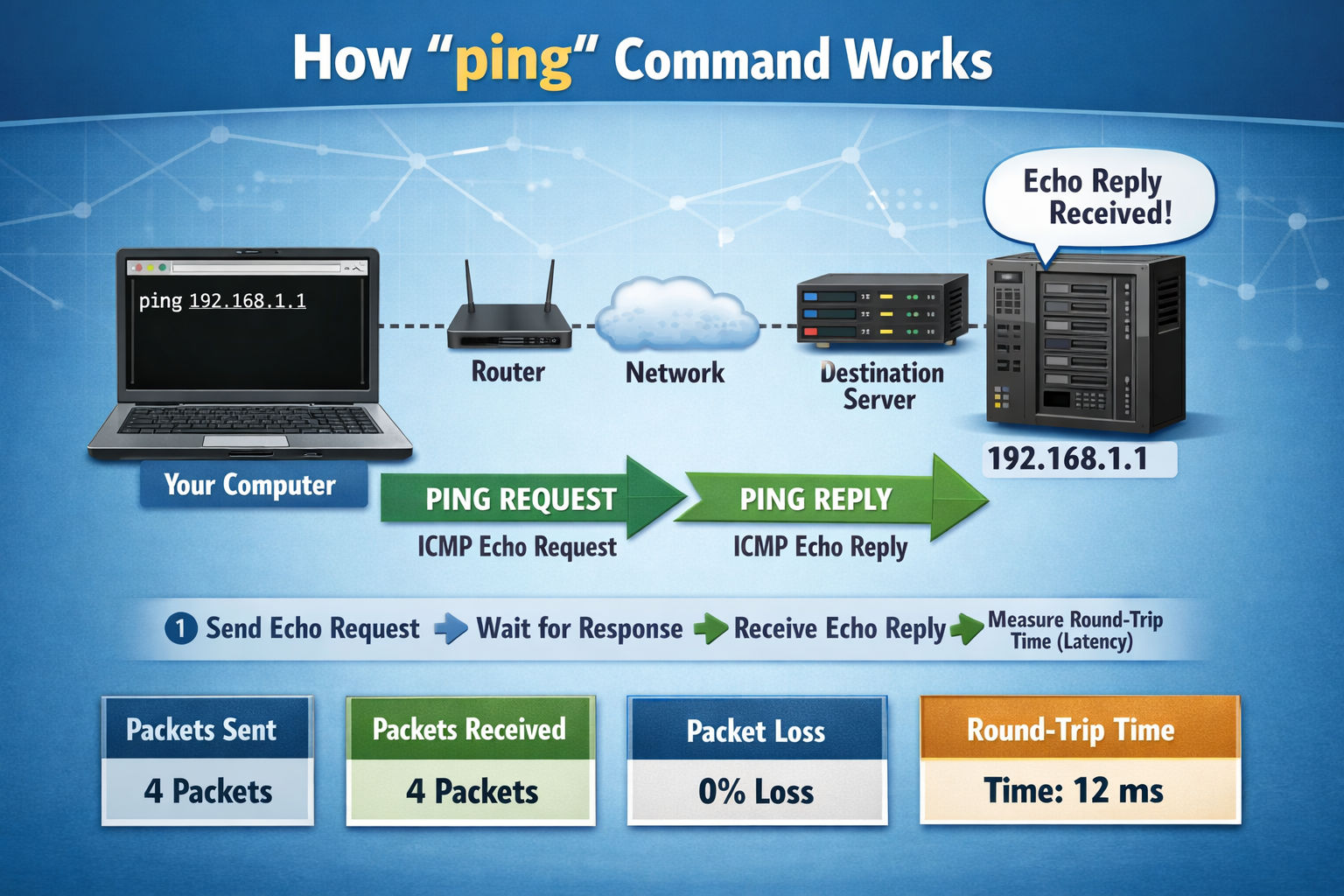
Ping sends a small ICMP “echo request” packet to the host. If the host is set up to answer, it sends back an “echo reply.” The time between the two is the round-trip time (RTT), measured in milliseconds.
What the results show
The summary table has one row per city:
- Network: the network the probe is in, with its AS number.
- Target IP: the address that city actually pinged. For a domain, each probe looks it up itself, so sites on a CDN can show a different address in each city.
- Min, Avg, Max: the fastest, average and slowest reply. The minimum is the best the path can do.
- Jitter: how much the reply times change from one packet to the next.
- Loss: the share of packets that got no reply.
- Result: replied, N% lost when some packets went missing, no reply when none came back, or probe failed when the probe itself couldn’t run the test. That last one says nothing about your host.
Open a city to see one bar per packet, with lost packets marked in red, plus the number of replies, the TTL and the raw ping output. Notes under the results name the fastest and slowest city.
Example: pinging 8.8.8.8
| From | Network | Min | Avg | Max | Jitter | TTL |
|---|---|---|---|---|---|---|
| Frankfurt | Oracle | 0.9 ms | 0.9 ms | 0.9 ms | 0.0 ms | 120 |
| London | OVH | 1.1 ms | 1.2 ms | 1.2 ms | 0.0 ms | 112 |
| Sydney | Oracle | 1.4 ms | 1.5 ms | 1.5 ms | 0.0 ms | 121 |
| New York | DigitalOcean | 1.3 ms | 1.6 ms | 2.4 ms | 0.4 ms | 118 |
| Singapore | LeaseWeb | 1.2 ms | 2.8 ms | 4.7 ms | 1.2 ms | 119 |
| San Francisco | Paxio | 3.9 ms | 5.0 ms | 5.8 ms | 0.6 ms | 118 |
| Amsterdam | DELUXHOST | 7.2 ms | 13.8 ms | 23.6 ms | 13.4 ms | 118 |
| Bengaluru | RACKVOLT | 9.8 ms | 26.1 ms | 52.1 ms | 19.4 ms | 118 |
All four packets came back everywhere (0% loss). Frankfurt was fastest at 0.9 ms on average, and Bengaluru slowest at 26.1 ms.
One IP, many servers
Frankfurt, Sydney and New York all got answers in under 2 ms. That can’t be one server. Light in fiber covers about 200 km per millisecond, so a round trip between Frankfurt and Sydney takes at least 165 ms.
What’s happening is anycast. 8.8.8.8 is Google Public DNS (see IP to Hostname), and Google announces that same address from data centers all over the world. Each probe reached whichever Google server was closest to it.
The same applies to any site behind a CDN like Cloudflare. Ping it and you measure the distance to the nearest CDN server, not to the server where the site actually runs.
Steady vs. jittery paths
Look at the minimum and the jitter together. Frankfurt’s four replies were all 0.9 ms, with jitter of 0.0. Bengaluru’s best reply was 9.8 ms, but its worst was 52.1 ms, with jitter of 19.4 ms, almost as high as the 26.1 ms average.
The minimum shows what the distance allows. The jitter shows how much is added on top of it: busy links, queueing, or a busy probe. When jitter gets close to the average, as in Bengaluru and Amsterdam here, the path is unsteady. A few milliseconds of jitter is normal.
Jitter matters more than the average for video calls and online games, because it makes timing unpredictable. Before blaming the target, run the test again. The probe’s own network can cause it.
Counting routers with TTL
Every reply starts with a TTL value, usually 64, 128 or 255, and each router it passes lowers it by one. Frankfurt’s replies arrived with TTL 120, which means about 8 routers if it started at 128. London’s arrived with 112, about 16.
This counts the routers on the way back, which isn’t always the way there. So it won’t always match the hop count from a Traceroute.
Distance sets the floor
A useful rule of thumb: every 100 km of fiber adds roughly 1 ms of round-trip time, and real cable routes are rarely straight. Typical round trips:
| Route | Typical round trip |
|---|---|
| Same city or data center region | under 5 ms |
| Within Europe | 10–40 ms |
| Europe to the US East Coast | 70–100 ms |
| Europe to Southeast Asia | 150–200 ms |
| Europe to Australia | 250–300 ms |
So 280 ms from Sydney to a server in Frankfurt isn’t a fault; it’s distance. Pinging from eight cities shows you where visitors wait longest. If many of your visitors are on the far side of the world, a CDN or a second server closer to them is the fix.
Latency also adds up faster than people expect. Opening a new HTTPS connection takes a DNS lookup plus about three round trips (TCP connection, TLS handshake, then the request itself) before the first byte arrives. With a 100 ms round trip, that’s already more than 300 ms of waiting.
What can make results misleading
Blocked ping. Many servers and firewalls don’t answer ICMP at all. Cloud servers often block it by default; on AWS, for example, ping fails until you allow ICMP in the security group. A no reply result doesn’t mean the site is down. Check with the Website Status Checker, or check that port 80 or 443 is open with the Open Port Checker.
Too few packets. With 4 packets, a single lost reply shows as 25% loss. For loss and jitter you can rely on, choose 10 or 16 packets. Routers also give ICMP low priority when they’re busy, so an occasional dropped ping isn’t necessarily a real problem.
Different probes each time. Each run uses whichever probe is available in each city, so the network, and the numbers, can change between runs. If one city looks bad, run it again before drawing conclusions.
What it’s useful for
Choosing where to host. Ping a provider’s test IP from all eight cities before you buy. Most hosts publish test IPs or a “looking glass” page for exactly this.
Checking CDN coverage. Low latency everywhere means visitors are being served from nearby. If one region stands out, the CDN isn’t covering it well. The Target IP column shows which server each city reached.
Spotting regional problems. If one city shows high latency, loss or jitter and the others are fine, the problem is on the path from that region. Run Traceroute from the same city to see where it goes wrong.
After a server move. Confirm the new IP answers from everywhere, and that the Target IP column shows the new address in every city.
FAQ
What’s a good ping?
It depends on how far away the server is. For a website, under about 50 ms from the region where most of your visitors live is good. For gaming and video calls, low jitter matters as much as the number itself.
Why does it say “no reply”?
The host may be down or the address may be wrong. Most often, though, the host simply doesn’t answer ping. Check whether the website loads before assuming anything is broken.
Does ping affect SEO?
Not directly. Google doesn’t ping your server, and ping time isn’t a ranking factor. Latency does slow page loads, and page speed feeds into Core Web Vitals such as Largest Contentful Paint. Serving visitors from nearby, usually through a CDN, is the practical fix.
Is ping the same as a speed test?
No. A speed test measures bandwidth: how much data you can move per second. Ping measures latency: how long one round trip takes. A 1 Gbps connection to a server on another continent still has a high ping.
Can I test my own connection with this?
No. The pings run from probes in the eight cities, not from your device. To test from your own computer, open a terminal and run:
- Windows:
ping -n 20 8.8.8.8 - Mac or Linux:
ping -c 20 8.8.8.8
Twenty packets give you a much better picture of loss and jitter than four.
Related Tools
Contact
Missing something?
Feel free to request missing tools or give some feedback using our contact form.
Contact Us